Meet the editor
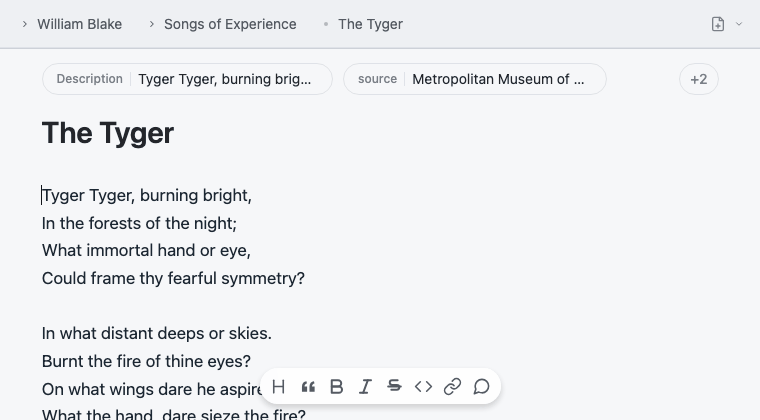
The editor keeps your site folder above the page you are writing. The path at the top is both a breadcrumb and a compact file tree; below it are the page's properties, title, Markdown body, and writing tools.
Find and create pages
The breadcrumb at the top doubles as a file tree, with controls of its own for finding and creating pages.
- Click the site root in the breadcrumb to expand the file tree, then click a page to open it. ▶
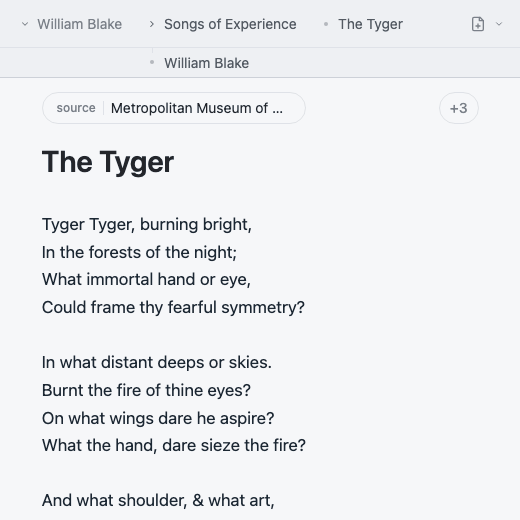
- Click New Page above the tree to add a page beside the current one. ▶
- Open its ▾ and choose New Folder, type a name, and press Return to create it. ▶
- Or choose a saved template under From template to create a page seeded with its content. ▶
- Double-click the tree's bottom border to collapse it; double-click again to reopen it. ▶
Drag the tree's bottom border to show more or fewer files. Your folder structure is also your site structure: a new folder becomes a section, and a Markdown file becomes a page. See Site structure for the exact file-to-URL rules.
Start from a template
To save a page for reuse, right-click it and choose Save as Template…, then name it and press Return. To save a whole folder shape, use that command on the folder's home file; moss marks it as a folder template. ▶
To use one, open the New Page options menu beside the new-page button and choose the named template under From template. A page template creates a new page; a folder template creates a new folder with its saved contents. Manage Templates… in the same menu renames or deletes saved templates. ▶
Set page properties
The chips above the page are frontmatter properties: title, date, cover, visibility, and other settings that affect the page or its place in the site. Click a chip to edit it. Click + and search for one, such as Cover, then press Return to add it. moss stores the result as YAML frontmatter at the top of the Markdown file. ▶
The large title uses the filename by default, so editing it renames the file and updates wikilinks to it. Add a title property only when the public title should differ from the filename; after that, editing the large title changes the property instead. The complete list is in Page properties and frontmatter.
Write the page
Write ordinary Markdown in the main editor. Select text for the floating formatting toolbar, type / at the start of a line for the insert menu, or use the toolbar at the bottom. The source stays a normal .md file; the Markdown guide covers headings, lists, links, and other basics.
moss layouts and components are fenced with :::. Insert one from the / menu or write it directly; see Shortcodes for examples.
Drag local files from Finder into the editor, paste an image, or use the Media chip to pick a file: the editor copies it into your folder and inserts a standard Markdown embed such as . Pages, tables, notebooks and folders embed as wikilinks (![[name]]). Typing [[ to search the site is optional; use [[page]] for a link whenever you like. See Links and media for the full syntax and supported file types.
Save and restore versions
Right-click a page, folder, or the site root and choose Versions…. The scope follows what you clicked, and moss also saves a version automatically whenever you publish. Click Save a version, then confirm to save one immediately with an optional name. Open a version to see what changed, then click Restore to bring back that page, folder, or the whole site — moss saves the current state first, so you can undo it. ▶
For keyboard commands, see Editor shortcuts. When the page is ready, check it in the live preview and publish from the preview pane.